
✔ Fact-checked. For informational purposes only.
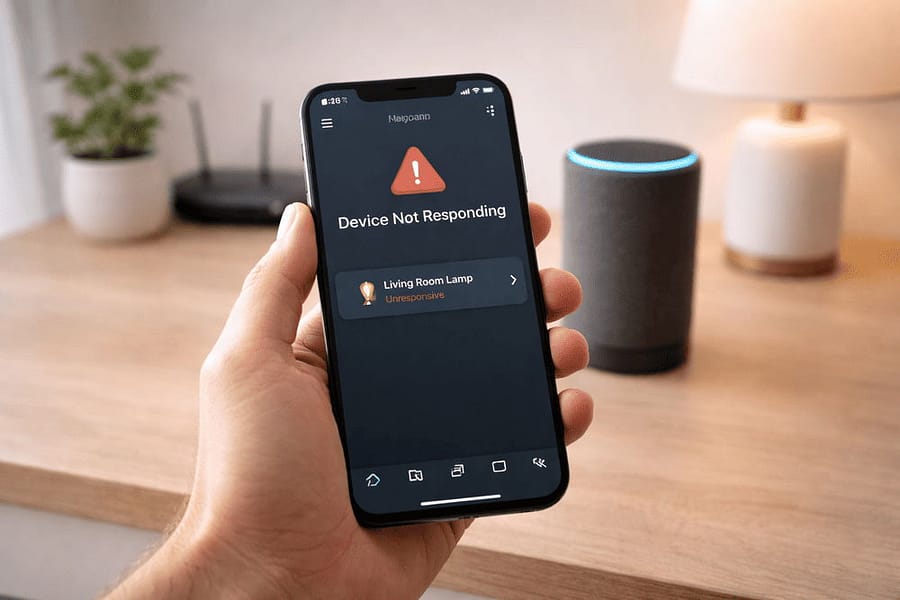
How to Fix “Device Not Responding” in Alexa App
Few things are more frustrating in a modern smart home than seeing the dreaded “Device Not Responding” message in the Alexa app. As we rely more on voice-activated convenience for our lighting, security, and climate control, a sudden breakdown in communication feels like a significant step backward. For U.S. adults aged 35 to 70, these glitches often appear as a “digital wall” that disrupts daily routines. However, learning how to fix “Device Not Responding” in Alexa app is usually a matter of systematic troubleshooting rather than a sign of broken hardware. By following a professional diagnostic path, you can restore your home’s connectivity and enjoy a safer, more responsive living environment.
The Problem: Why Smart Home Communication Fails
The “Device Not Responding” error is essentially a “handshake” failure between the Alexa cloud and your physical device. In the complex world of the 2026 smart home, this bridge can be broken by several factors. Most commonly, the issue is rooted in local network congestion. As your router manages dozens of smart plugs, bulbs, and cameras, it can occasionally “drop” the connection to a specific unit to preserve bandwidth for others. This is the most frequent reason you need to know how to fix “Device Not Responding” in Alexa app.
Another common cause is a “session timeout” between Alexa and the third-party manufacturer’s skill (like Philips Hue, TP-Link, or Ring). In 2025 and 2026, security updates to these cloud platforms often require users to re-authenticate their accounts. When this link expires, Alexa loses the permission to control the hardware, resulting in the unresponsive status. Recognizing whether the issue is a Wi-Fi “signal” problem or an account “authorization” problem is the key to a quick resolution.
Safety Note: Power and Physical Obstructions
Before moving to software fixes, perform a physical check. Ensure the device is actually receiving power and that the Wi-Fi router hasn’t been blocked by new furniture or metal objects. A device located more than 30 feet from a router is significantly more likely to trigger an unresponsive error due to signal degradation.
The Benefits of a Stable Smart Home Network
Fixing these connectivity issues provides more than just convenience; it ensures your home’s safety systems are operational. An unresponsive smart lock or security camera is a vulnerability. By mastering how to fix “Device Not Responding” in Alexa app, you ensure that your “Away” routines and safety triggers function precisely as intended. A stable network also reduces the “latency” (lag) between your voice command and the device’s action, creating a much more natural and comfortable editorial experience within your home.
Furthermore, a well-maintained Alexa ecosystem allows for “Proactive AI” features. In 2026, Alexa can anticipate needs—such as turning on the porch light when it detects your arrival—but these advanced routines only work if the device status is “Online.” Keeping your devices responsive ensures you are getting the full value out of your smart home investment.
Core Troubleshooting Categories
When you encounter an unresponsive device, categorize your fix based on the following three levels of intervention. Most “Device Not Responding” issues are solved at Level 1.
- Level 1: The Power Cycle (Hard Reset). Unplug the unresponsive device and your Wi-Fi router. Wait 30 seconds, then plug them back in. This clears the “cache” and forces a fresh IP address assignment.
- Level 2: The Skill Refresh. Open the Alexa app, go to “More” > “Skills & Games.” Find the skill associated with your device, disable it, and then re-enable it. This refreshes the security token between the two platforms.
- Level 3: Device Re-Discovery. If the device is still dark, “forget” the device in the Alexa app and put it back into pairing mode. Ask Alexa to “Discover my devices” to create a clean, new connection.
Buying Guide: Choosing Reliable Smart Hardware
If you find yourself constantly researching how to fix “Device Not Responding” in Alexa app for a specific product, it may be time to upgrade to more reliable hardware. For the 35–70 demographic, “Matter-certified” devices are the new gold standard in 2026. Matter ensures that devices communicate locally without needing to go to the cloud, which virtually eliminates the “unresponsive” error caused by internet hiccups.
When purchasing new gear, prioritize Dual-Band (2.4GHz/5GHz) compatibility. Many older smart home devices only use the crowded 2.4GHz band. Modern Wi-Fi 7 or 6E mesh systems can better manage these legacy devices, providing a “cleaner” signal. Look for brands that offer Thread support; Thread is a self-healing mesh protocol that makes devices much more resilient to connection drops than standard Wi-Fi.
Recommended Reliability Check
Always check the “Alexa Integration Quality” rating on Amazon. Devices with “Certified for Humans” branding are tested by Amazon to ensure they meet strict connectivity and setup standards, making them the most stable choice for a non-technical household.
Frequently Asked Questions
Why does Alexa say “Device is unresponsive” but the device still works in its own app?
This usually indicates a “cloud-to-cloud” failure. The device is connected to its own brand’s server, but that server isn’t talking to Amazon. Refreshing the “Skill” in the Alexa app is the best fix for this specific scenario.
Can my neighbor’s Wi-Fi cause my devices to stop responding?
Yes. If you live in a dense area, “channel interference” is a major factor. Changing your router’s 2.4GHz channel (try 1, 6, or 11) can often resolve persistent connectivity issues.
Does a low battery cause this error?
Absolutely. Many smart locks and sensors will enter a “sleep mode” to conserve the last bit of battery life, which Alexa interprets as being offline. Always check battery levels first for wireless devices.
Will a factory reset delete all my routines?
If you factory reset a smart device (like a bulb), you will need to re-add it to your routines. However, factory resetting an Echo speaker generally keeps your routines intact in the Alexa cloud.
Conclusion: Restoring Your Home’s Intelligence
The “Device Not Responding” error is a common hurdle on the path to a truly automated home. By understanding the underlying causes—from network congestion to expired cloud tokens—you can move from frustration to resolution in minutes. Mastering how to fix “Device Not Responding” in Alexa app empowers you to maintain a home that is both comfortable and secure. As technology shifts toward local protocols like Matter and Thread in 2026, these errors will become increasingly rare. Until then, a systematic approach to power-cycling and skill-refreshing remains your best tool for keeping your smart home responsive and reliable. Don’t let a minor glitch stand in the way of your modern, connected lifestyle.
📚 Official Support & Networking References
- Amazon Device Support:
Echo Device Connectivity Issues
(The official “Red Ring” and “Device Offline” troubleshooting steps directly from the manufacturer) - Wi-Fi Alliance:
Understanding Wi-Fi Interference
(Technical explanation of why microwaves, baby monitors, and neighbors’ routers cause your Alexa to say “I’m having trouble connecting”) - Consumer Reports:
Smart Speaker Reliability & Troubleshooting
(Independent testing on which router settings—like dual-band frequency—cause the most dropouts for smart assistants)
Disclaimer
This information is for educational and informational purposes only and does not constitute professional advice. Always consult with a qualified professional before making any decisions based on this content.
About the Expert
Alex Chen
Lead Technology Analyst & Smart Living Editor at FactaHub
Alex Chen leads the editorial direction and technical analysis for FactaHub’s Tech & Smart Living category. He is responsible for critically assessing new technologies and trends, ensuring that all published guides provide clear, unbiased, and actionable advice to readers seeking to integrate smart technology into their daily lives. Alex has nearly a decade of experience analyzing consumer electronics and developing user-centric solutions. Alex oversees a strict editorial process to maintain the credibility of FactaHub’s tech content, focusing on user safety, practicality, and longevity of tech products.